Guide
How to run a town hall Q&A on EVOCA
Collect questions ahead of the all-hands, review what leadership should answer, then run a shared live wall. Screenshots follow the QnA Programs flow in the dashboard.
Last verified: September 2026
Prefer the product story first? Read the town hall use case. For a single speaker talk without Programs, see how to run a talk.
Requirement: QnA Programs must be enabled on your account (feature flag), and the program owner needs a Growth (€29/mo) or Scale organizer plan. Moderators you invite can help without owning the plan.
Steps
1.Open Programs
Open Dashboard → Programs (labeled QnA Programs). Create a program with a clear name (for example "Engineering town hall") via Create program.
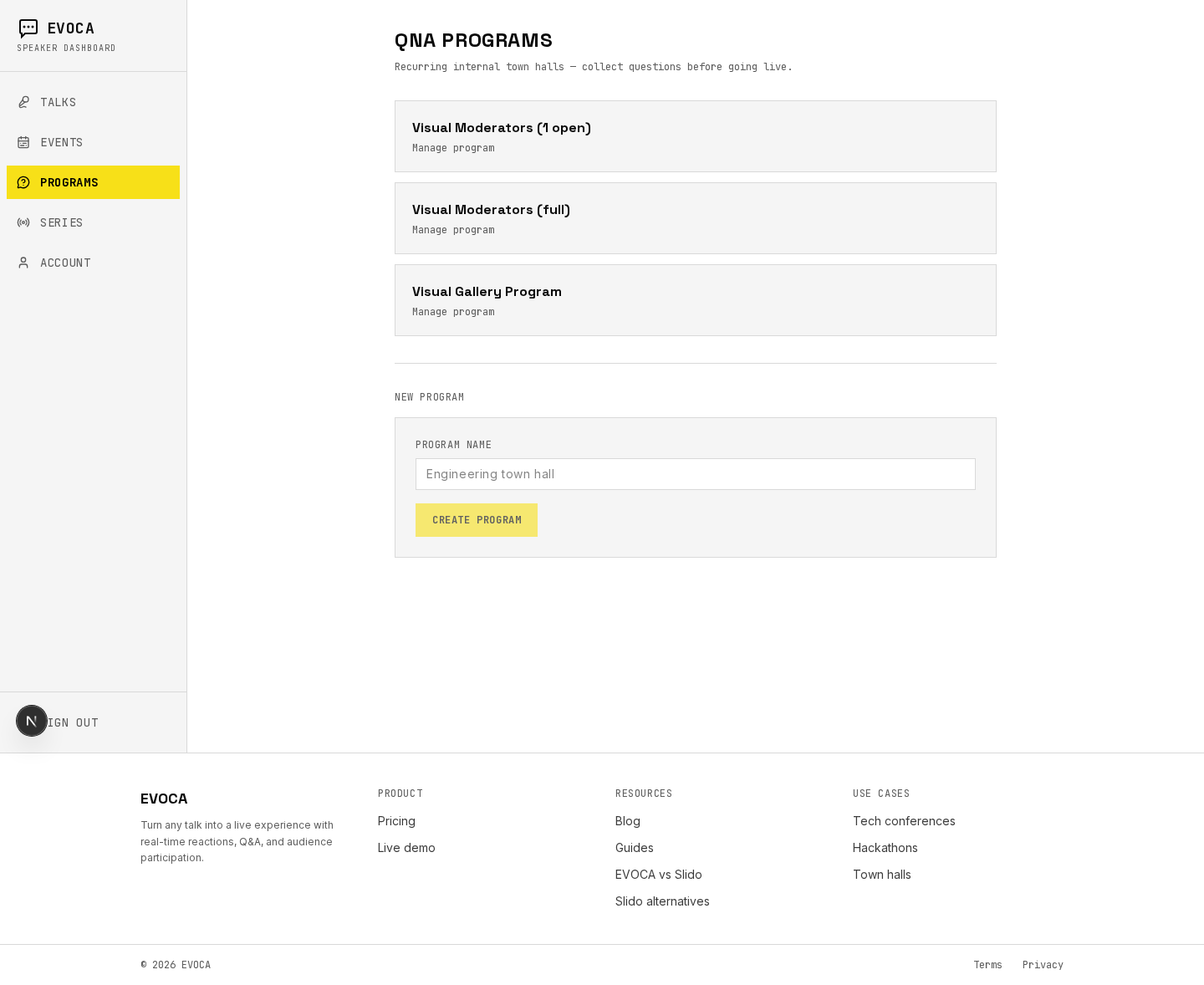
Programs list — recurring town-hall style Q&A programs. 2.Import roster and schedule an occurrence
On the program page, use Employee roster: paste a CSV (one email per line; optional name in the second column) and click Import roster. Under Plan a Q&A session, set Question collection opens, optionally Question collection closes and Live session start, then click Schedule occurrence. Status starts as Scheduled and moves to Collecting questions when the open time hits.
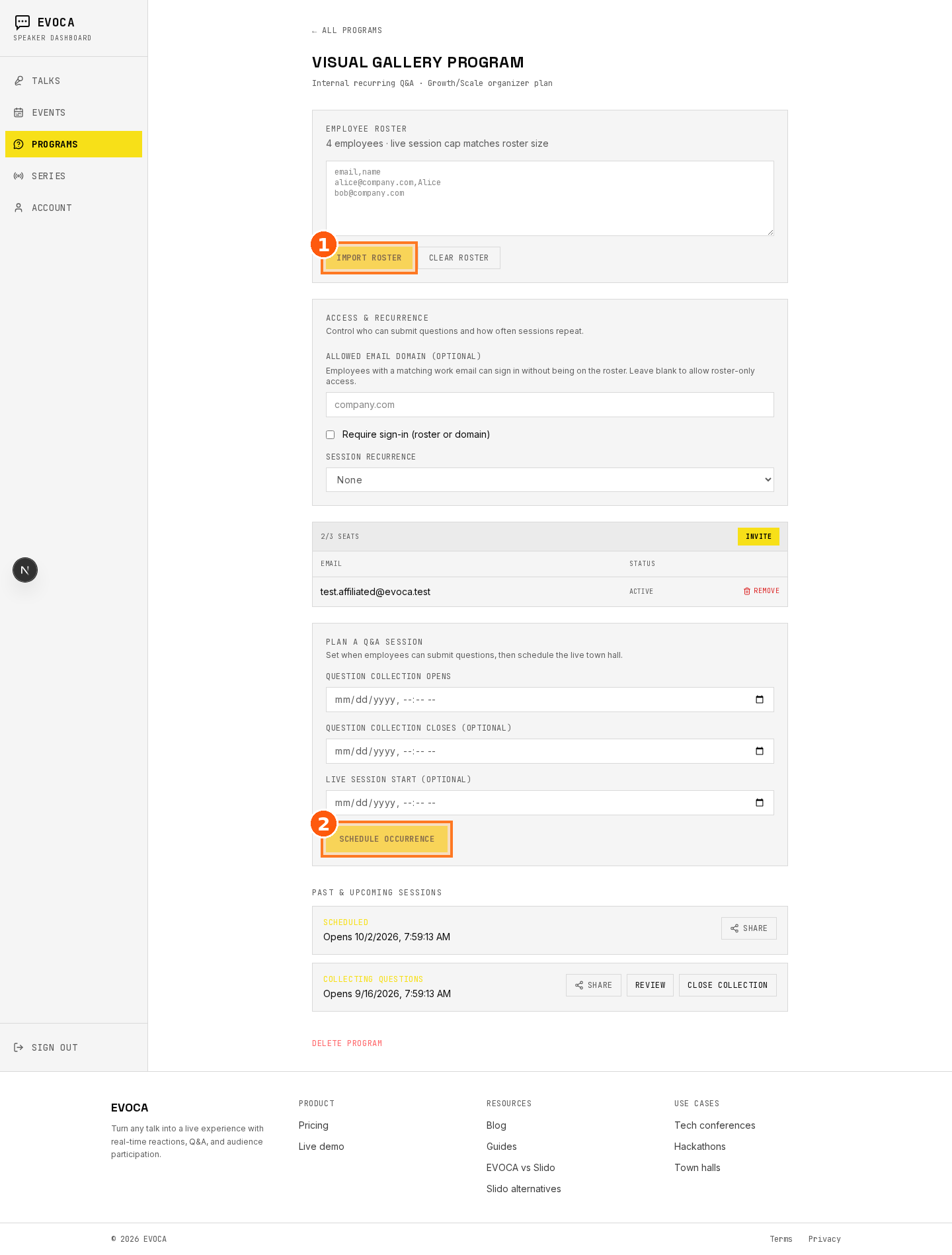
Program editor — roster, seats, and Schedule occurrence. 3.Share the collect page
On the occurrence card, open Share. Copy the collect link, use Show QR / Copy QR, or native share. Employees open the link in a browser — no app install — and submit on the public collect page.
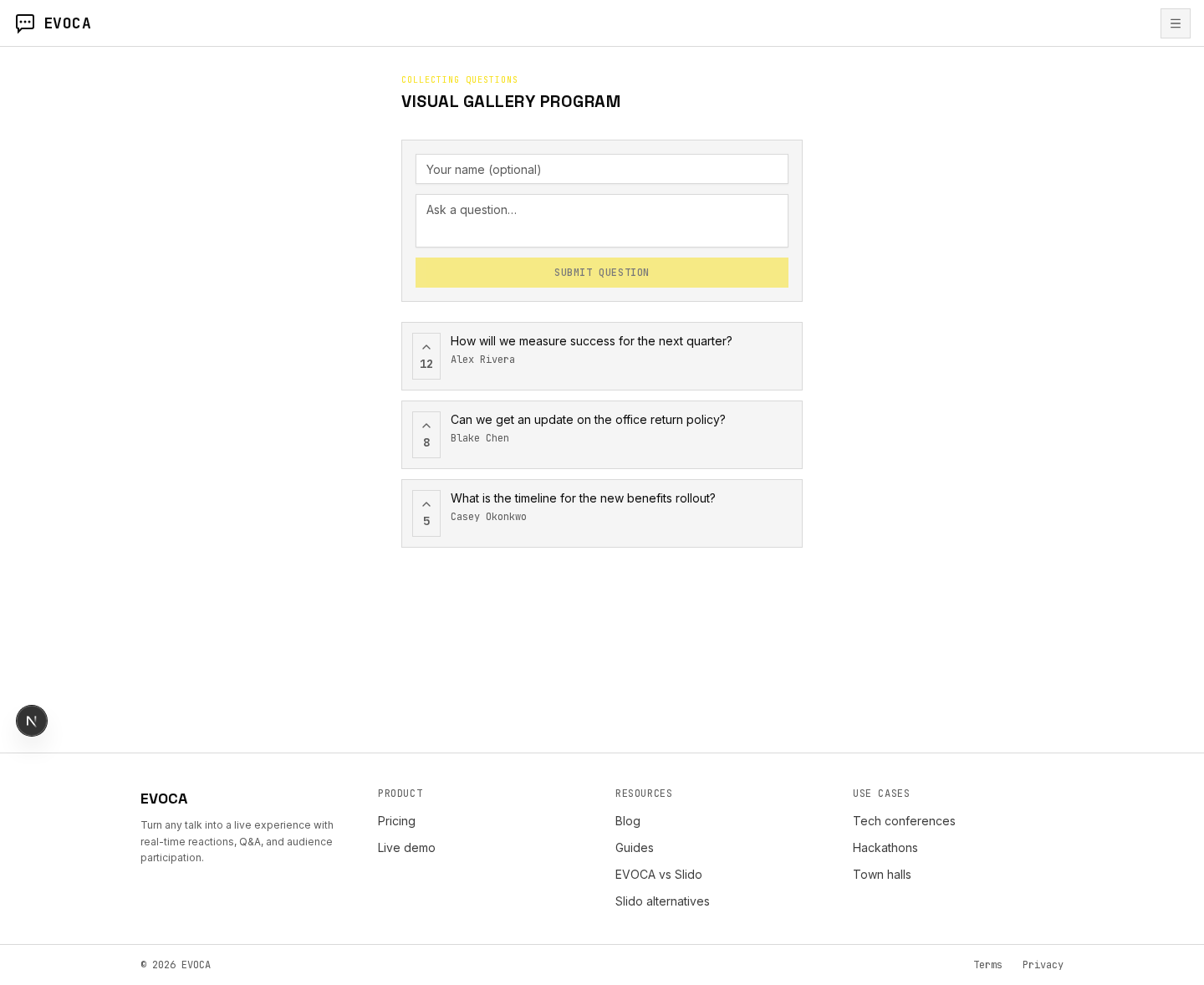
Public collect page where employees submit questions. 4.Review submissions and close collection
While status is Collecting questions, click Review to open the review board. When you are ready to stop new submissions, click Close collection (or wait for the close time). Status becomes In review; use Moderate to finish sorting.
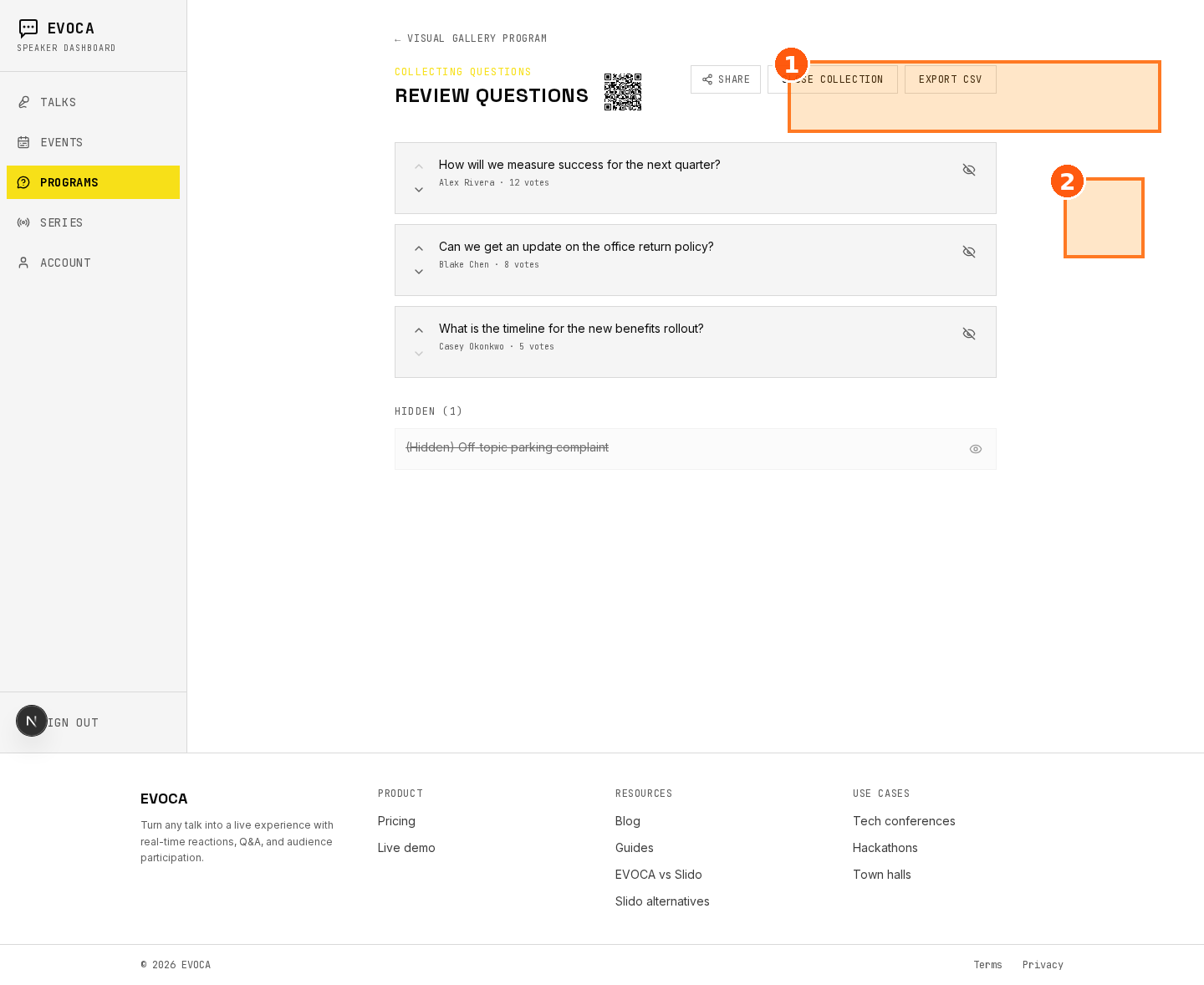
Review board — moderate, hide, Close collection, then Go live. 5.Go live and project the wall
Click Go live. You are taken to the session Q&A. From the Q&A header, use Open Wall for the projected shared wall and Open Presenter for the speaker view.
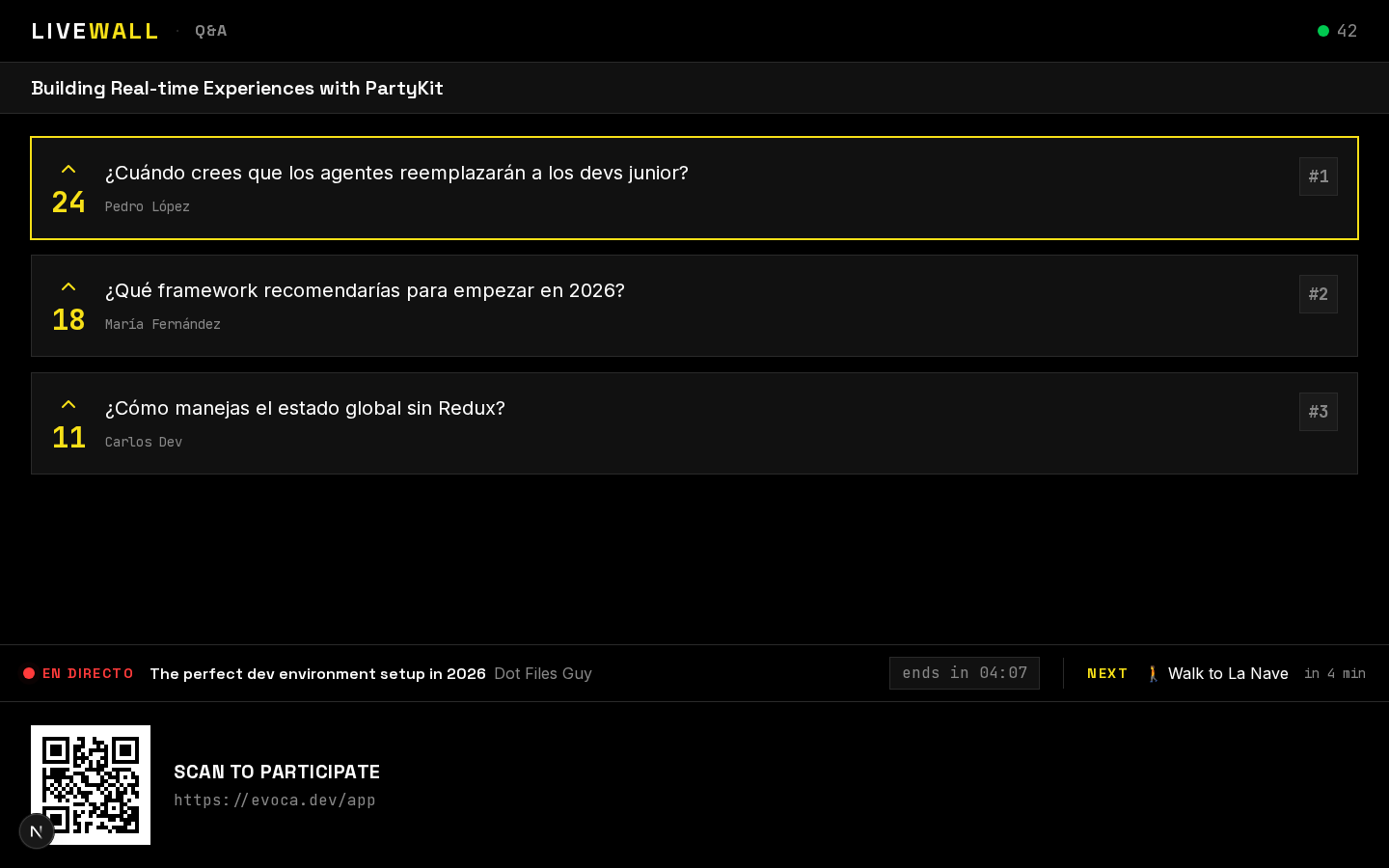
Live Q&A wall for the town hall audience. 6.Run speaker Q&A
Leadership answers from the speaker Q&A view while the wall stays on the shared screen. When the town hall is done, click End on the occurrence, then View archive → if you need the collected questions later.
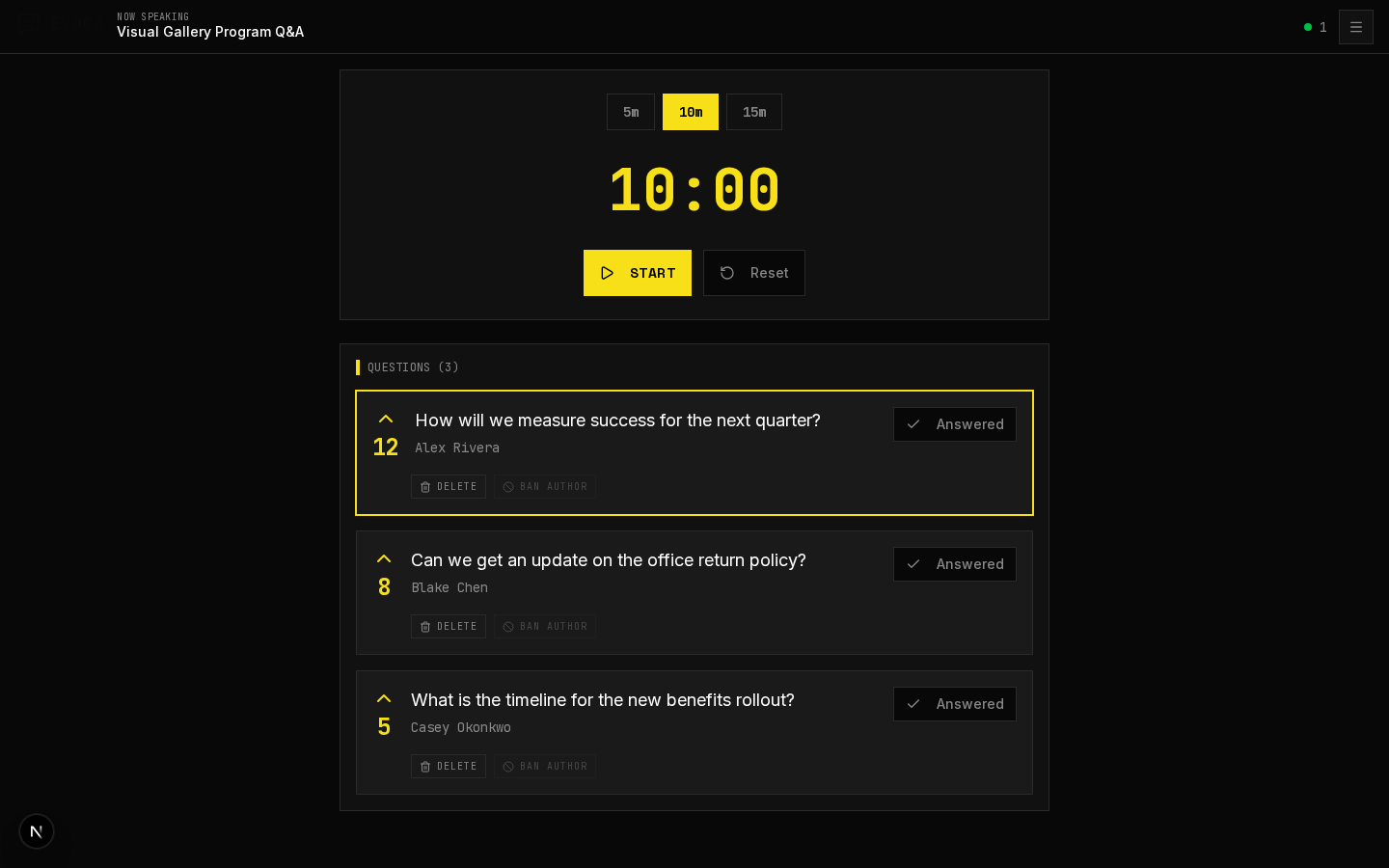
Speaker Q&A view while running the town hall.
Frequently asked questions
Run your next all-hands on EVOCA
Free for events up to 100 attendees on Talks. QnA Programs for recurring town halls need Growth or Scale.